Table of Contents
- What's New with High-Performance Order Storage?
- Scalability
- Reliability
- Simplicity
- Background
- Enabling the feature
- Database tables
- Authoritative tables
- Synchronization
- Immediate synchronization
- Manual synchronization
- Scheduled synchronization
- Deletion synchronization
- Placeholder records
- Order Data Storage
- Incompatible Plugins
- Disabling HPOS
High Performance Order Storage (HPOS)
WooCommerceは従来、店舗の注文と関連する注文情報(払い戻しなど)をWordPressのカスタム投稿タイプまたは投稿メタレコードとして保存してきました。これにはパフォーマンスの問題があります。
High-Performance Order Storage (HPOS) also previously known as "Custom Order Tables" is a solution that provides an easy-to-understand and solid database structure – specifically designed for eCommerce needs. It uses the WooCommerce CRUD design to store order data in custom tables – optimized for WooCommerce queries with minimal impact on the store's performance.
In January 2022, we published the initial plan for the Custom Order Tables feature and since then, we've been working hard to bring the High-Performance Order Storage (HPOS) to WooCommerce Core. In May 2022, we invited you to test the order migration process and provide feedback on how our initial work performs on real stores of varied configurations.
From WooCommerce 8.2, released on October 2023, High-Performance Order Storage (HPOS) is officially released under the stable flag and will be enabled by default for new installations.
What's New with High-Performance Order Storage?
WooCommerceにHigh-Performance Order Storage (HPOS) を導入することで、eコマースストアに不可欠なこれら3つの特性が改善されます。
Scalability
顧客数と顧客注文数の増加により、店舗のデータベースへの負荷が増大し、顧客からの注文リクエストを処理し、シームレスなユーザー体験を提供することが難しくなります。
High-Performance Order Storageを使用すると、注文や注文アドレスなどのデータ用に専用のテーブルが用意され、専用のインデックスが作成されます。この機能により、あらゆる形や規模のeコマースストアが、専門家の介入なしに、潜在能力を最大限に引き出してビジネスを拡大することができます。
Reliability
高性能オーダーストレージは、ターゲットデータのバックアップの実装と復元を容易にします。カスタム・オーダー・テーブルの信頼性の高いバックアップにより、オーダー、在庫数、顧客情報の紛失を心配する必要がなくなります。また、読み取り/書き込みロックの実装が容易になり、競合状態を防ぐことができます。
Simplicity
もう、基礎データやWooCommerceのエントリーを探すために、1つの巨大なデータベースを調べる必要はありません。
With High-Performance Order Storage, you can easily browse through the separate tables and easy-to-handle entries, independent of the table _posts, to find data or understand the table structure. It also lets you easily develop new plugins, implement designs for shops and products, and modify WooCommerce with more flexibility.
Background
Before the release of version 8.2, WooCommerce relied on the _post and _postmeta table structures to store order information, which has served well over the years.
しかし、High-Performance Order Storageは、注文や注文アドレスのようなデータ専用のテーブルを導入し、専用のインデックスを作成することで、読み取り/書き込み操作を減らし、ビジーなテーブルを減らします。この機能により、あらゆる形や規模のeコマースストアが、専門家の介入なしに、潜在能力を最大限に引き出してビジネスを拡大することが可能になります。
The order data is synced from _posts and _postmeta table to four custom order tables:
_wc_orders_wc_order_addresses_wc_order_operational_data_wc_orders_meta
Enabling the feature
From WooCommerce 8.2, released on October 2023, HPOS is enabled by default for new installations. Existing stores can check How to enable HPOS
Database tables
A number of database tables are used to store order data by HPOS. The get_all_table_names method in the OrdersTableDataStore class will return the names of all the tables.
Authoritative tables
HPOS機能が有効になっている間、関係するデータベース・テーブルには2つのロールがあります:authoritative_と_backup_です。オーソリティ・テーブルは作業用テーブルで、ストアの通常稼動時に注文データが保存され、そこから検索されます。backup_テーブルは、synchronizationが発生するたびに、権威データのコピーを受け取ります。
If the woocommerce_custom_orders_table_enabled options is set to true, HPOS is active and the new tables are authoritative, while the posts and post meta tables act as the backup tables. If the option is set to false, it's the other way around. The option can be changed via admin UI (WooCommerce – Settings – Advanced – Custom data stores).
The CustomOrdersTableController class hooks on the woocommerce_order_data_store filter so that WC_Data_Store::load( 'order' ); will return either an instance of OrdersTableDataStore or an instance of WC_Order_Data_Store_CPT, depending on which are the authoritative tables.
データの整合性を保つため、オーダーの同期が保留されている間は、権威テーブルの切り替え(新しいテーブルから投稿テーブルへ、またはその逆)は許可されません。
Synchronization
同期化とは、権限テーブルの保留中の変更をすべてバックアップ・テーブルに適用するプロセスです。同期を保留しているオーダーとは、権威テーブルで変更されたが、その変更がまだバックアップ・テーブルに適用されていないオーダーのことです。
これはさまざまな形で起こりうる:
Immediate synchronization
If the woocommerce_custom_orders_table_data_sync_enabled setting is set to true, synchronization happens automatically and immediately as soon as the orders are changed in the authoritative tables.
Manual synchronization
When immediate synchronization is disabled, it can be triggered manually via command line as follows: wp wc cot sync. It can also be triggered programmatically as follows:
$synchronizer = wc_get_container()->get(Automattic\WooCommerce\Internal\DataStores\Orders\DataSynchronizer::class);
$order_ids = $synchronizer->get_next_batch_to_process( $batch_size );
if ( count( $order_ids ) ) {
    $synchronizer->process_batch( $order_ids );
}
where $batch_size is the maximum count of orders to process.
Scheduled synchronization
If immediate synchronization gets activated (woocommerce_custom_orders_table_data_sync_enabled is set to true) while there are orders pending synchronization, an instance of DataSynchronizer will be enqueued using BatchProcessingController so that the synchronization of created/modified/deleted orders will happen in batches via scheduled actions. This scheduling happens inside CustomOrdersTableController, by means of hooking into woocommerce_update_options_advanced_custom_data_stores.
何らかの理由で即時同期がすでに有効になっているにもかかわらず、同期がスケジュールされていない場合、設定ページ(WooCommerce – 設定 – 詳細 – カスタムデータストア)に移動し、何も変更を加えなくても「保存」を押すことで同期を再開することができます。投稿テーブルと注文テーブルの同期を維持する」にチェックが入っている限り、以前にチェックが入っていたとしても、同期のスケジューリングは行われます。
If the woocommerce_auto_flip_authoritative_table_roles option is set to true (there's a checkbox for it in the settings page), the authoritative tables will be switched automatically once all the orders have been synchronized. This is handled by the CustomOrdersTableController class.
Deletion synchronization
注文削除の同期化はやっかいだ。一方のテーブル(新規テーブルまたはポスト)に注文が存在し、もう一方に注文が存在しない場合、欠落している注文を作成する必要があるのか、既存の注文を削除する必要があるのかがはっきりしない。理論的には、バックアップテーブルから欠落したオーダーは前者を意味し、権威テーブルから欠落したオーダーは後者を意味する。しかし、関係するコードにバグがあると、正当なオーダーが簡単に削除されてしまうので危険だ。
To achieve a robust order deletion synchronization mechanism the following is done. Whenever an order is deleted and immediate synchronization is disabled, a record is created in the wp_wc_orders_meta table that has deleted_from as the key and the name of the authoritative table the order was deleted from (wp_wc_orders or the posts table). Then at synchronization time these records are processed (the corresponding orders are deleted from the corresponding tables) and deleted afterwards.
An exception to the above are the placeholder records: these are deleted immediately when the corresponding order is deleted from wp_wc_orders, even if immediate synchronization is disabled.
When the "High-Performance Order Storage" and "Compatibility mode" are enabled, WooCommerce populates the HPOS tables with data from posts & postmeta tables. The synchronization between the tables is explained in detail in this document.
You can find a deeper explanation about the synchronization between the tables in this document about high-performance-order-storage-backward-compatibility-and-synchronization.
Placeholder records
Order IDs must match in both the authoritative tables and the backup tables, otherwise synchronization wouldn't be possible. The order IDs that are compared for order identification and synchronization purposes are the ones from the id field in both the wp_wc_orders table and the posts table.
If the posts table is authoritative, achieving an order ID match is easy: the record in wp_wc_orders is created with the same ID and that's it. However, when the new orders tables are authoritative there's a problem: the posts table is used to store multiple types of data, not only orders; and by the time synchronization needs to happen, a non-order post could already exist having the same ID as the order to synchronize.
To solve this, placeholder records are used. Whenever the new orders tables are authoritative and immediate synchronization is disabled, creating a new order will cause a record with post type shop_order_placehold and the same ID as the order to be created in the posts table; this effectively "reserves" the order ID in the posts table. Then, at synchronization time, the record is filled appropriately and its post type is changed to shop_order.
Order Data Storage
データストアを自由に切り替えて、テーブル間でデータを同期させることができる。
- If you select "WordPress Post Tables", the system will save the order data within
_postand_postmetatables. The order tables are not utilized in this scenario.
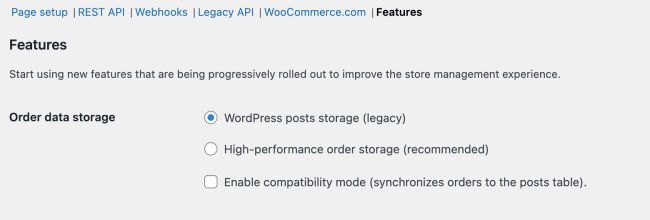
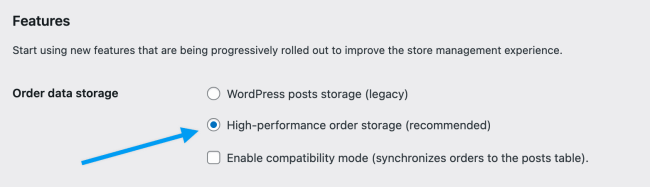
- High-Performance Order Storage "**を選択した場合、システムは新しいWooCommerce注文テーブル内に注文データを保存します。
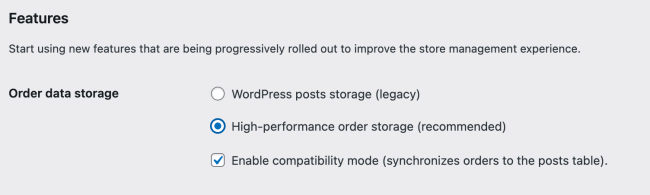
- WordPress Post Tables "**と "Enable compatibility mode "**を選択した場合、システムは投稿/ポストメタとWooCommerce注文テーブルの間で注文データを同期します。
Incompatible Plugins
High-Performance Order Storageと互換性のないプラグインを使用している場合、HPOSオプションはWooCommerce > Settings > Advanced > Featuresで無効になります。

- You can click on "View and manage" to review the list of incompatible plugins
- Or you can visit
https://example.com/wp-admin/plugins.php?plugin_status=incompatible_with_feature&feature_id=custom_order_tablesto review the list of incompatible plugins (please replaceexample.comwith your site domain)

Note: If you are using a third-party extension that isn't working properly with High-Performance Order Storage then please notify the developers of the extension and ask them to update their extension to add support for HPOS. It's up to the extension developers to add support for HPOS. We have developer resources and documentation available to help with their integration efforts.
Disabling HPOS
問題が発生した場合、またはHPOSとまだ互換性のないプラグインで作業を続ける必要がある場合は、一時的にWordPress posts storageに戻すことをお勧めします。
これを行うには、WooCommerce ▸ 設定 ▸ 詳細 ▸ 機能に移動し、互換モードが有効になっていることを確認することから始めます。まだ有効になっていない場合、注文データがデータストア間で同期されるまでしばらく待つ必要があるかもしれません。

Once synchronization has completed, you can select WordPress posts storage (legacy) as your preferred option. You can also disable compatibility mode at this point. Once you are ready to re-enable HPOS, simply follow the instructions posted at the start of this doc. Finally, remember to save this page between changes!
先に述べたように、互換性のないプラグインについては、サポートチームに連絡し、是正措置を取ってもらうことを強くお勧めする。