Table of Contents
How to extend WooCommerce analytics reports
Introduction
このドキュメントは、基本的なUIドロップダウン、追加されたクエリパラメータ、SQLクエリの変更、および結果のレポートデータを使用して、WC-Adminレポートを拡張するためのガイドです。この例では、特定の通貨に基づいて注文レポートを表示するための通貨セレクタを作成します。
Code from this guide can be viewed in the woocommerce code repository.
Getting started
We'll be using a local installation of WordPress with WooCommerce and the development version of WC-Admin to take advantage of create-wc-extension as a way to easily scaffold a modern WordPress JavaScript environment for plugins.
ローカルにインストールしている場合は、WC-Adminをクローンして起動する。
cd wp-content/plugins
git clone git@github.com:woocommerce/woocommerce.git
cd plugins/woocommerce/client/admin
npm run build
これがうまくいったら、JavaScript開発のための拡張機能フォルダをセットアップすることができる。
npm run create-wc-extension
名前を決めたら、そのフォルダに移動し、ファイルを監視してビルドするためにwebpackを起動する。
cd ../<my-plugin-name>
npm install
npm start
Don't forget to head over to /wp-admin/plugins.php and activate your plugin.
Populating test data
次に、サンプルデータを持つためにいくつかの注文を設定します。WooCommerce > Settings > Currencyを使って、メキシコペソ、米ドル、ニュージーランドドルの3つのテスト注文を追加しました。
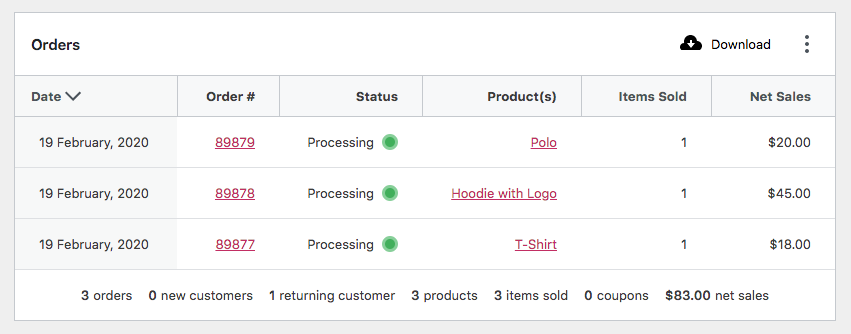
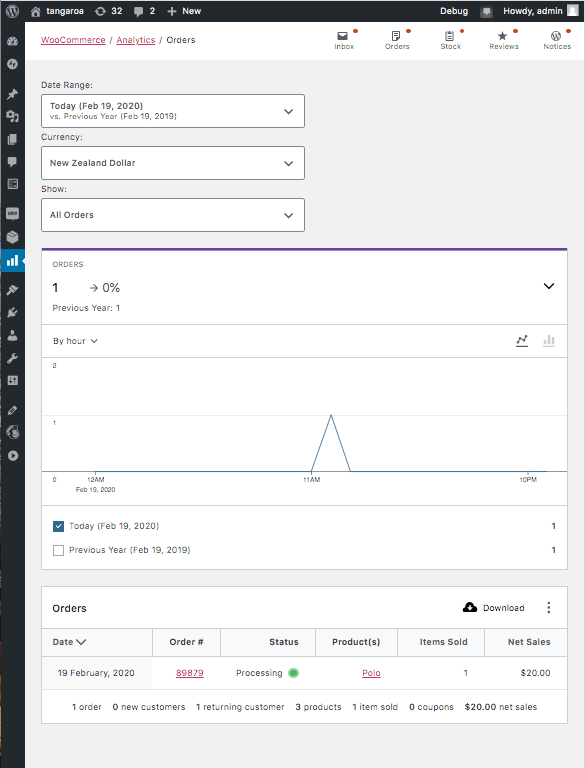
After doing so, check out WC-Admin to make sure the orders are showing up by going to /wp-admin/admin.php?page=wc-admin&period=today&path=%2Fanalytics%2Forders&compare=previous_year. Note that without any modification currency figures show according to what I have currently in WooCommerce settings, which is New Zealand Dollar in this case.
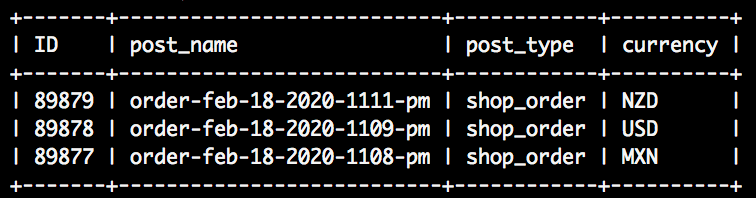
We can confirm each order's currency by running the following query on the wp_posts table and joining wp_postmeta to gather currency meta values. Results show an order in NZD, USD, and MXN. This query is similar to the one we'll implement later in the guide to gather and display currency values.
SELECT
    ID,
    post_name,
    post_type,
    currency_postmeta.meta_value AS currency
FROM `wp_posts`
JOIN wp_postmeta currency_postmeta ON wp_posts.ID = currency_postmeta.post_id
WHERE currency_postmeta.meta_key = '_order_currency'
ORDER BY wp_posts.post_date DESC
LIMIT 3
Add a UI dropdown
In order to view reports in differing currencies, a filter or dropdown will be needed. We can add a basic filter to reports by adding a configuration object similar to this one from the Orders Report.
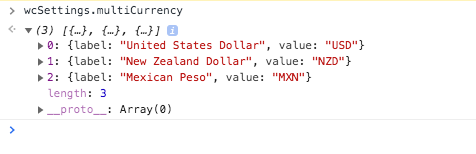
First, we need to populate the client with data to render the dropdown. The best way to do this is to add data to the wcSettings global. This global can be useful for transferring static configuration data from PHP to the client. In the main PHP file, add currency settings to the Data Registry to populate window.wcSettings.multiCurrency.
function add_currency_settings() {
    $currencies = array(
        array(
            'label' => __( 'United States Dollar', 'dev-blog-example' ),
            'value' => 'USD',
        ),
        array(
            'label' => __( 'New Zealand Dollar', 'dev-blog-example' ),
            'value' => 'NZD',
        ),
        array(
            'label' => __( 'Mexican Peso', 'dev-blog-example' ),
            'value' => 'MXN',
        ),
    );

    $data_registry = Automattic\WooCommerce\Blocks\Package::container()->get(
        Automattic\WooCommerce\Blocks\Assets\AssetDataRegistry::class
    );

    $data_registry->add( 'multiCurrency', $currencies );
}

add_action( 'init', 'add_currency_settings' );
コンソールでは、データが無事にクライアントに届いたことを確認できる。
In index.js create the custom currency filter and add it the Orders Report.
import { addFilter } from "@wordpress/hooks";
import { __ } from "@wordpress/i18n";

const addCurrencyFilters = (filters) => {
  return [
    {
      label: __("Currency", "dev-blog-example"),
      staticParams: [],
      param: "currency",
      showFilters: () => true,
      defaultValue: "USD",
      filters: [...(wcSettings.multiCurrency || [])],
    },
    ...filters,
  ];
};

addFilter(
  "woocommerce_admin_orders_report_filters",
  "dev-blog-example",
  addCurrencyFilters
);
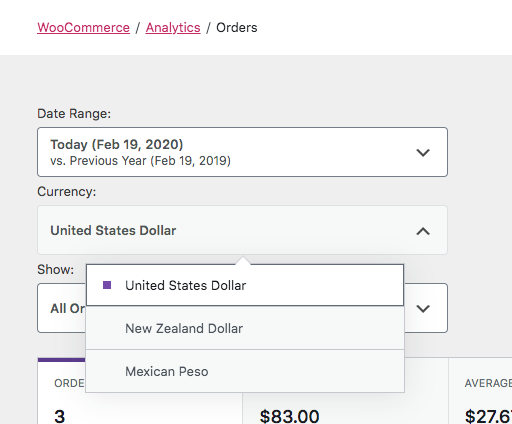
If we check out the Orders Report, we can see our new dropdown. Play around with it and you'll notice the currency query parameter gets added to the url. If you check out the Network tab, you'll also see this value included in requests for data used to populate the report. For example, see the requests to orders stats endpoint, /wp-json/wc-analytics/reports/orders/stats. Next we'll use that query parameter to adjust report results.
Handle currency parameters on the server
Now that our dropdown adds a currency query parameter to requests for data, the first thing we'll need to do is add the parameter as a query argument to the Orders Data Store and Orders Stats Data Store. Those data stores use query arguments for caching purposes, so by adding our parameter we can be sure a new database query will be performed when the parameter changes. Add the query argument in your main PHP file.
function apply_currency_arg( $args ) {
    $currency = 'USD';

    if ( isset( $_GET['currency'] ) ) {
        $currency = sanitize_text_field( wp_unslash( $_GET['currency'] ) );
    }

    $args['currency'] = $currency;

    return $args;
}

add_filter( 'woocommerce_analytics_orders_query_args', 'apply_currency_arg' );
add_filter( 'woocommerce_analytics_orders_stats_query_args', 'apply_currency_arg' );
Now that we're sure a new database query is performed on mutations of the currency query parameter, we can start adding SQL statements to the queries that gather data.
受注テーブル、受注統計、受注チャートのJOINを追加することから始めよう。
function add_join_subquery( $clauses ) {
    global $wpdb;

    $clauses[] = "JOIN {$wpdb->postmeta} currency_postmeta ON {$wpdb->prefix}wc_order_stats.order_id = currency_postmeta.post_id";

    return $clauses;
}

add_filter( 'woocommerce_analytics_clauses_join_orders_subquery', 'add_join_subquery' );
add_filter( 'woocommerce_analytics_clauses_join_orders_stats_total', 'add_join_subquery' );
add_filter( 'woocommerce_analytics_clauses_join_orders_stats_interval', 'add_join_subquery' );
次に、WHERE句を追加する。
function add_where_subquery( $clauses ) {
    $currency = 'USD';

    if ( isset( $_GET['currency'] ) ) {
        $currency = sanitize_text_field( wp_unslash( $_GET['currency'] ) );
    }

    $clauses[] = "AND currency_postmeta.meta_key = '_order_currency' AND currency_postmeta.meta_value = '{$currency}'";

    return $clauses;
}

add_filter( 'woocommerce_analytics_clauses_where_orders_subquery', 'add_where_subquery' );
add_filter( 'woocommerce_analytics_clauses_where_orders_stats_total', 'add_where_subquery' );
add_filter( 'woocommerce_analytics_clauses_where_orders_stats_interval', 'add_where_subquery' );
そして最後にSELECT句。
function add_select_subquery( $clauses ) {
    $clauses[] = ', currency_postmeta.meta_value AS currency';

    return $clauses;
}

add_filter( 'woocommerce_analytics_clauses_select_orders_subquery', 'add_select_subquery' );
add_filter( 'woocommerce_analytics_clauses_select_orders_stats_total', 'add_select_subquery' );
add_filter( 'woocommerce_analytics_clauses_select_orders_stats_interval', 'add_select_subquery' );
注文レポートに戻り、うまくいくか確認してみよう。ドロップダウンを操作して、関連する注文が表に反映されるのを確認できます。
Finishing touches
The orders table could use some customisation to reflect the selected currency. We can add a column to display the currency in index.js. The reportTableData argument is an object of headers, rows, and items, which are arrays of data. We'll need to add a new header and append the currency to each row's data array.
const addTableColumn = (reportTableData) => {
  if ("orders" !== reportTableData.endpoint) {
    return reportTableData;
  }

  const newHeaders = [
    {
      label: "Currency",
      key: "currency",
    },
    ...reportTableData.headers,
  ];
  const newRows = reportTableData.rows.map((row, index) => {
    const item = reportTableData.items.data[index];
    const newRow = [
      {
        display: item.currency,
        value: item.currency,
      },
      ...row,
    ];
    return newRow;
  });

  reportTableData.headers = newHeaders;
  reportTableData.rows = newRows;

  return reportTableData;
};

addFilter("woocommerce_admin_report_table", "dev-blog-example", addTableColumn);
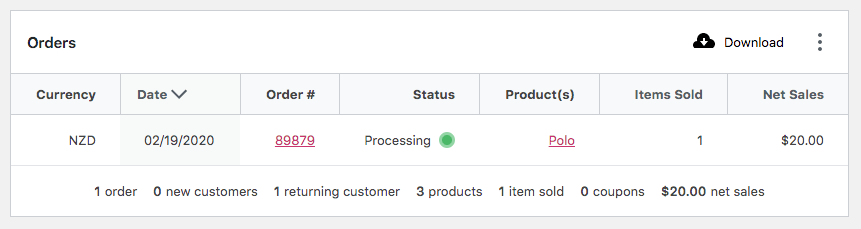
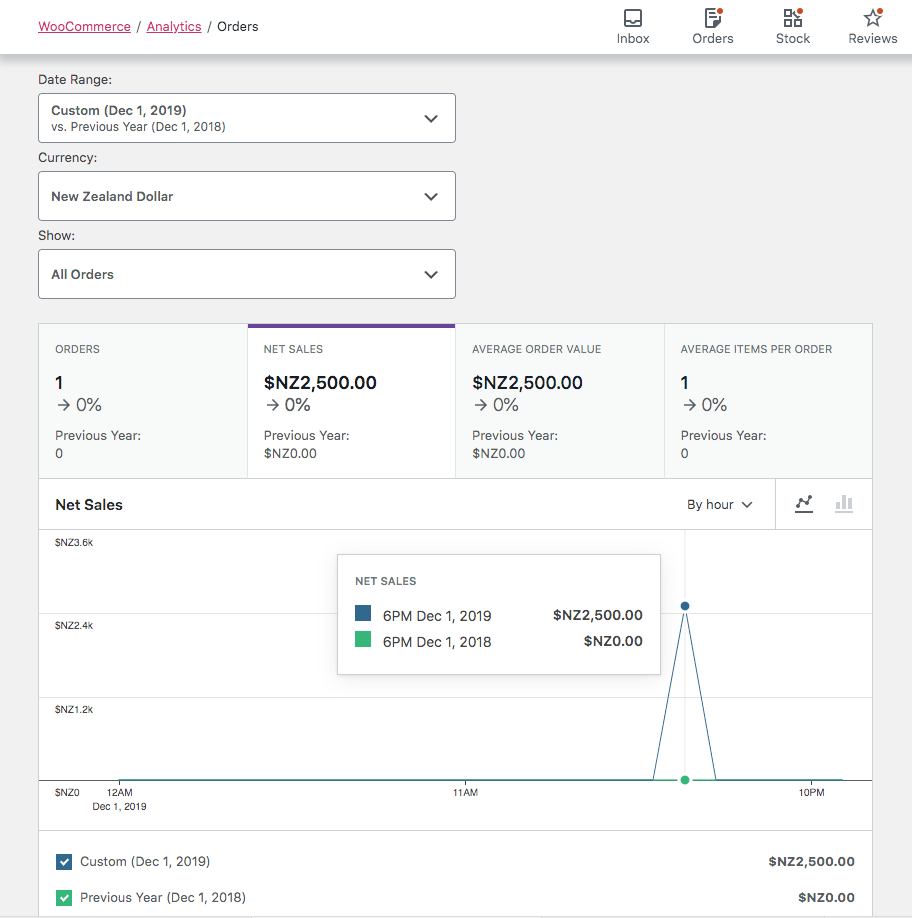
カラムを追加することは確かに便利だが、表やグラフの通貨数値は店舗の通貨しか反映しない。
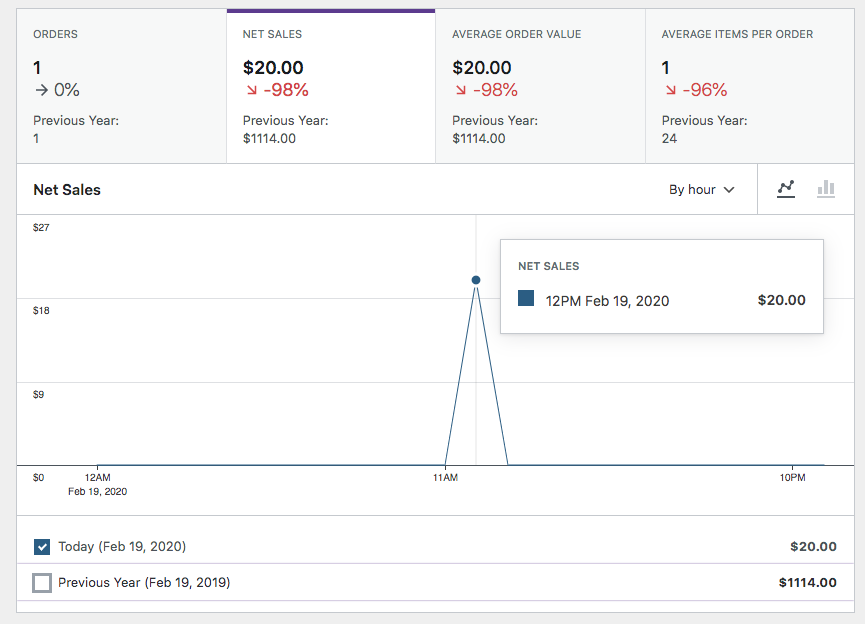
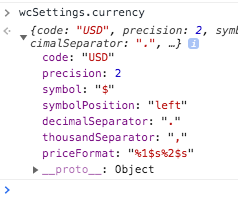
In order to change a Report's currency and number formatting, we can make use of the woocommerce_admin_report_currency JS hook. You can see the store's default sent to the client in wcSettings.currency, but we'll need to change these depending on the currency being viewed and designated by the query parameter ?currency=NZD.
まず、index.jsにいくつかの設定を作る。
const currencies = {
  MXN: {
    code: "MXN",
    symbol: "$MXN", // For the sake of the example.
    symbolPosition: "left",
    thousandSeparator: ",",
    decimalSeparator: ".",
    precision: 2,
  },
  NZD: {
    code: "NZD",
    symbol: "$NZ",
    symbolPosition: "left",
    thousandSeparator: ",",
    decimalSeparator: ".",
    precision: 2,
  },
};
最後に、通貨クエリパラメータに基づいて設定を適用する関数をフックに追加します。
const updateReportCurrencies = (config, { currency }) => {
  if (currency && currencies[currency]) {
    return currencies[currency];
  }
  return config;
};

addFilter(
  "woocommerce_admin_report_currency",
  "dev-blog-example",
  updateReportCurrencies
);
🎉 オーダーレポートを表示し、レポート全体で通貨が金額に反映されているのを確認できるようになりました。
Conclusion
このガイドでは、サーバーに送信されるクエリ・パラメータを操作するためのUI要素を追加し、それらの値を使用してレポート・データを収集するSQLステートメントを変更します。そうすることで、WC-Adminレポートを高度にカスタマイズする方法を確立しました。この例が、ユーザーにパワフルな体験をもたらすために、拡張機能によってどのようにプラットフォームをカスタマイズできるかを示してくれることを願っています。